
Unlock productivity in Visual Studio Code by discovering these underrated tricks every developer should use.
Introduction
Visual Studio Code has become the most popular code editor for developers worldwide. Lightweight, extensible, and packed with features, it’s a staple in modern software development.
Yet, even seasoned developers often underutilize VS Code. Beneath its familiar interface lies a treasure trove of productivity hacks, shortcuts, and hidden functionalities that can save hours of typing, reduce errors, and supercharge your workflow.
In this article, we’ll uncover 7 hidden VS Code features you probably haven’t explored. By the end, you’ll be coding faster, smarter, and more efficiently than ever.
Whether you’re building web apps, APIs, or desktop software, these tricks will help you get the most out of VS Code.
1. Multi-Cursor Magic
What It Is
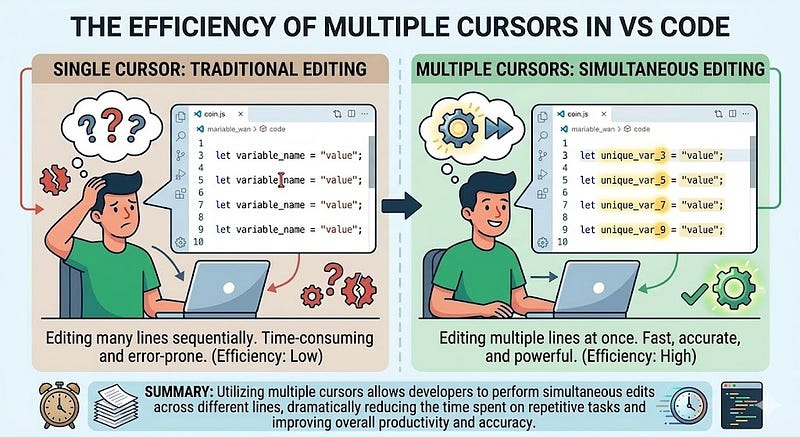
Multi-cursor editing allows you to edit multiple lines simultaneously. Instead of repeating the same edit across several lines manually, you can do it in one move.
How to Activate
- Windows/Linux:
Ctrl + Alt + Down/Ctrl + Alt + Up - Mac:
Option + Cmd + Down/Option + Cmd + Up
You can also select multiple instances of a word with:
- Windows/Linux:
Ctrl + D - Mac:
Cmd + D
Example
Suppose you have a list of variables:
const userName = "Alice";
const userEmail = "alice@example.com";
const userAge = 25;
You want to prefix each variable with let instead of const. With multi-cursor:
- Place cursors on each line (Ctrl+Alt+Down)
- Edit all lines at once:
let userName = "Alice";
let userEmail = "alice@example.com";
let userAge = 25;
Why It’s Powerful
- Saves repetitive typing
- Reduces errors
- Works for batch renaming or adding/removing syntax
Pro Tip
Combine multi-cursor with search and replace to edit across the whole file or project.
2. Command Palette: Your Swiss Army Knife

What It Is
The Command Palette (Ctrl + Shift + P / Cmd + Shift + P) is VS Code’s central hub for commands. Almost anything you can do in VS Code can be accessed here.
Hidden Uses
- Open files by name without navigating folders
- Change color themes instantly
- Run custom tasks
- Install extensions quickly
Example
Instead of navigating menus to toggle a line comment:
- Press
Ctrl + Shift + P - Type
Toggle Line Comment - Press Enter
It works even if you don’t remember the shortcut.
Why It’s Powerful
- Access any command without memorizing shortcuts
- Discover hidden features you didn’t know existed
- Increase productivity drastically
Pro Tip
Type > in the Command Palette to filter only commands, @ for symbols, # for searching inside files.
3. Integrated Git Features

What It Is
VS Code’s Git integration allows version control without leaving the editor. Many developers only use it for basic commits, but VS Code’s Git panel is much more powerful.
Hidden Features
- Stage partial changes (select specific lines)
- View inline diffs directly in the editor
- Switch branches and resolve conflicts visually
- Undo the last commit without the terminal
Example
Suppose you want to stage only some lines:
- Open Source Control panel (
Ctrl + Shift + G/Cmd + Shift + G) - Click
+next to the changed file - Use
...→Stage Selected Ranges
Now only those lines are staged for commit.
Why It’s Powerful
- Avoids accidental commits of unfinished code
- Simplifies conflict resolution
- Visual representation of changes makes Git accessible
Pro Tip
Combine with the GitLens extension for advanced blame, history, and annotations.
4. Snippets for Faster Coding
What It Is
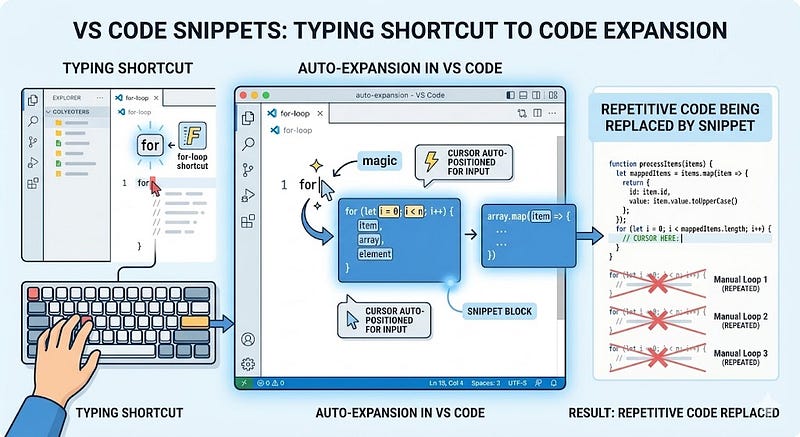
Snippets are custom or prebuilt templates that expand into code blocks. They save time and enforce consistency.
Built-in Snippets
for→ expands into aforloopif→ expands into anifstatementtry→ expands intotry...catch
Custom Snippets
You can create your own for repetitive patterns:
- Go to File → Preferences → User Snippets
- Select language (e.g.,
javascript.json) - Add custom snippet:
"Console Log": {
  "prefix": "cl",
  "body": ["console.log('$1');"],
  "description": "Log output to console"
}
Typing cl and pressing Tab inserts:
console.log();
With the cursor at $1 ready to type.
Why It’s Powerful
- Reduces repetitive typing
- Enforces consistent code style
- Speeds up coding significantly
Pro Tip
Create project-specific snippets for recurring patterns, APIs, or boilerplate code.
5. Live Share: Real-Time Collaboration

What It Is
VS Code Live Share allows you to collaborate in real time with others, even if they don’t have your environment.
How It Works
- Install Live Share extension
- Start a session and share the link
- Collaborators can edit, debug, and run code together
Example Use Cases
- Pair programming
- Code reviews
- Remote debugging sessions
Why It’s Powerful
- No need to push code to Git just to share
- Collaborators can run the code in your environment safely
- Works across platforms
Pro Tip
Combine Live Share with the Voice Chat extension for a complete collaborative experience.
6. Debugging Like a Pro
What It Is
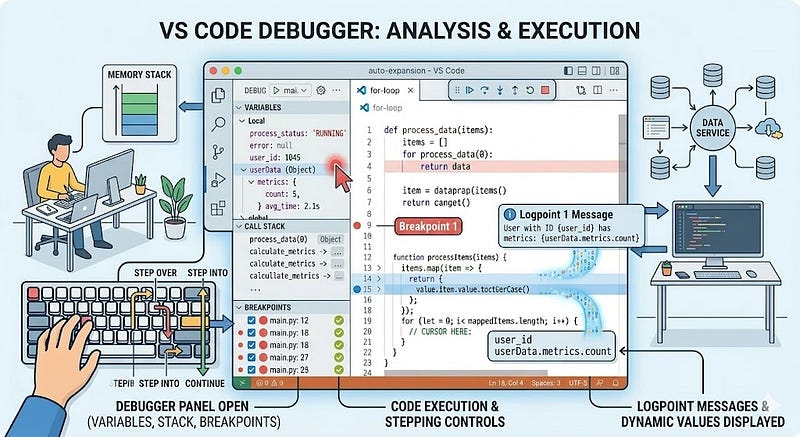
VS Code’s debugger is more than breakpoints. You can:
- Inspect variables dynamically
- Set conditional breakpoints
- Evaluate expressions in real time
- Step into async code
Hidden Features
- Logpoints: Insert temporary log messages without modifying code
Example:
- Right-click a line → Add Logpoint
- Type message:
User ID: {user.id}, status: {user.status}
3. Runs automatically when the line executes
Why It’s Powerful
- Avoids polluting production code with
console.log - Inspect complex applications live
- Debug asynchronously without guesswork
Pro Tip
Combine the debug console with watch expressions to monitor variable changes over time.
7. Workspaces and Multi-Root Projects
What It Is
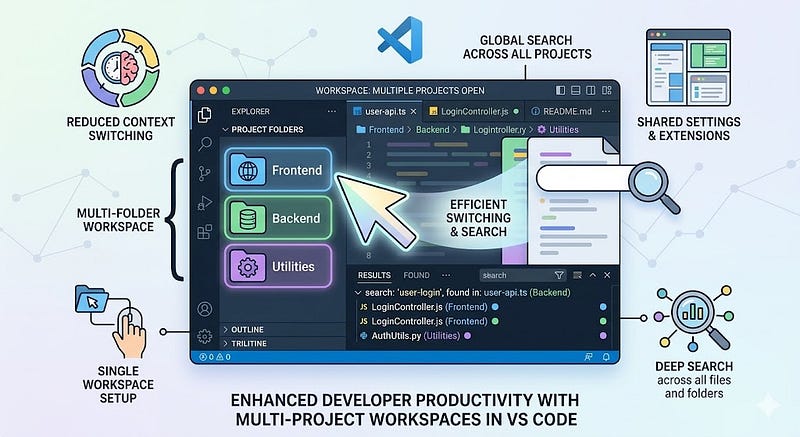
VS Code allows multi-root workspaces, letting you manage multiple projects in one window.
Benefits
- Open related repos together
- Share settings across projects
- Run a multi-folder search and replace
Example
- Create a new workspace:
File → Add Folder to Workspace - Save workspace as
.code-workspace - Open multiple folders, each with independent settings
Why It’s Powerful
- Streamlines working on microservices or frontend/backend split projects
- Reduces context switching
- Allows shared extensions and configurations
Pro Tip
Define workspace-specific settings to override global preferences for each project.
Bonus Tips
- Zen Mode (
Ctrl+K Z): Focus entirely on code with distractions removed - Peek Definition (
Alt+F12): View function implementation inline without leaving the current file - Emmet Abbreviations: Expand HTML/CSS with shortcuts like
div.container>ul>li*5
Conclusion
VS Code is more than just a code editor; it’s a productivity powerhouse. By leveraging these 7 hidden features, you can:
- Code faster and cleaner
- Reduce repetitive tasks
- Debug more effectively
- Collaborate seamlessly
Even small improvements, like using multi-cursors or logpoints, can save hours per week.
Start exploring one feature at a time, and you’ll be amazed at how much smoother your workflow becomes.
What’s your favorite hidden VS Code trick? Comment below, I’d love to hear how you supercharge your editor.
If you found this article useful, follow, share, and save it for your next coding session.








Leave a Reply